
Preview Edit Mode
How to edit questions and options inline in the preview screen, work with the edit dialog, and what to watch out for when editing surveys that already have responses.
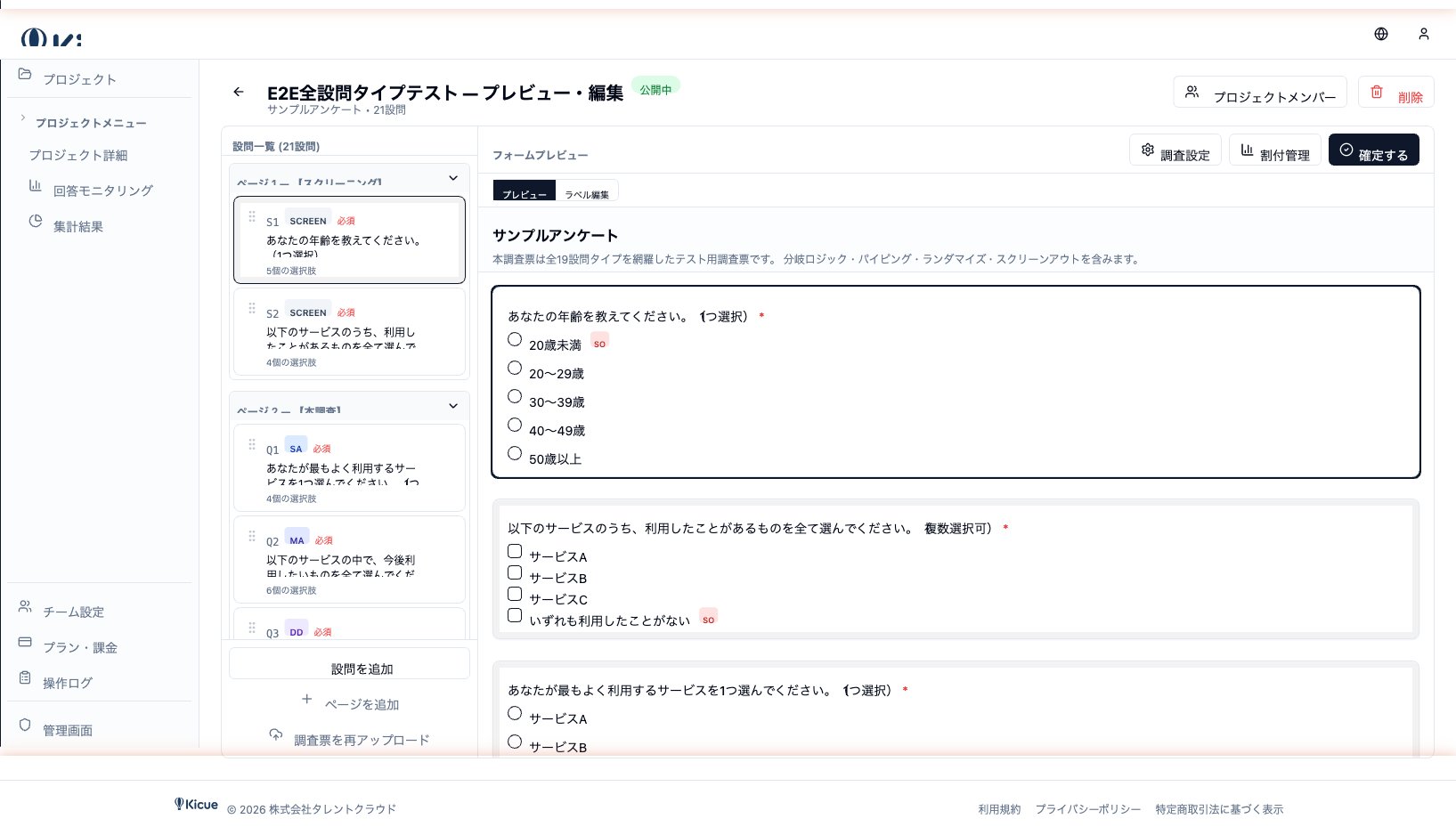
After AI parsing finishes, kicue lets you edit questions and options directly inline on the preview screen. Even if the parsed result needs polishing, you can adjust everything to its final form with a single click.
Mode toggle
The top-right of the preview screen has a toggle between Preview Mode and Edit Mode.
- Preview Mode — see the form exactly as a respondent will
- Edit Mode — click any question or option to edit it inline
You can switch back and forth as often as you like. Use Preview Mode for final QA before launch, then jump back to Edit Mode if anything needs to change.
Inline editing
In Edit Mode, almost every element on the form is clickable.
- Question text — click to rewrite
- Options — edit option labels in place
- Matrix questions — click row or column labels individually
While typing, kicue auto-saves to the server and shows a spinner.
Save feedback
Edits are saved with clear visual feedback.
- You type → spinner appears (saving)
- Save completes → spinner becomes a checkmark
- After 1–2 seconds → fades out
If a save fails (e.g. network error), a red warning icon appears so you can check connectivity and retry.
Edit dialog
Advanced configuration that can't be done inline opens in an edit dialog. Hover any question and click the gear icon that appears.
The dialog lets you configure:
- Change question type (SA ↔ MA ↔ Matrix, etc.)
- Logic (skip, show/hide)
- Detailed settings (max/min selections, randomization, exclusive options)
- Required validation
- Delete the question
When you change a question type, options and structures are automatically reshaped to match the new type.
Adding and removing pages
For multi-page surveys you can add or remove pages.
- Click Add page to append an empty page
- Use the Delete page button at the top of a page to remove it
- Each page can have its own title and description
Reordering questions
Grab the drag handle on the left of any question to move it up or down. You can move questions within a page or to other pages.
Editing surveys that already have responses
If your survey already has at least one real response, you'll see a warning when you edit.
- Structural changes can break consistency with existing response data
- Example: deleting an option leaves earlier responses that picked it in an undefined state
- Minor edits like fixing typos are safe — they don't affect data shape
For structural changes, copy the project to a new one before editing.
Next step
Once the structure looks good, set things like target response count and display rules in Survey Settings.