
How AI Parsing Works
How kicue uses AI to automatically recognize questions, options, and logic from uploaded documents, and how to review and edit the results.
kicue uses Anthropic's Claude API as the parsing engine. This page explains what the AI extracts from your document and how to review and edit the output.
What the AI extracts
kicue's AI parser recognizes the following from an uploaded file:
- Question numbers and question text
- Question type (single answer / multiple answer / matrix / scale / screening, etc.)
- Options and their order
- Required vs optional flags
- Branching logic (skip, show/hide, "proceed to Q5 only if...")
- Piping (inserting the previous answer into a later question)
- Randomization settings
- Page breaks (splitting the response flow across multiple pages)
Privacy protection
AI parsing is designed with privacy as the top priority.
- Never used for training — uploaded documents and response data are never used to train AI models (governed by Anthropic's enterprise policy)
- Automatic deletion — original files are deleted from kicue storage once parsing finishes
- Encrypted transit — every upload and every subsequent request is encrypted with TLS 1.3
Accuracy
For standard survey formats, most questions, options, and logic are recognized correctly. Manual adjustment may be needed in cases such as:
- Ambiguous plain-text structure
- Image-only PDFs
- Industry-specific abbreviations
- Questions where the line between free text and choice-based is unclear
Always review the results in the preview screen and make small fixes as needed.
Reviewing and editing results
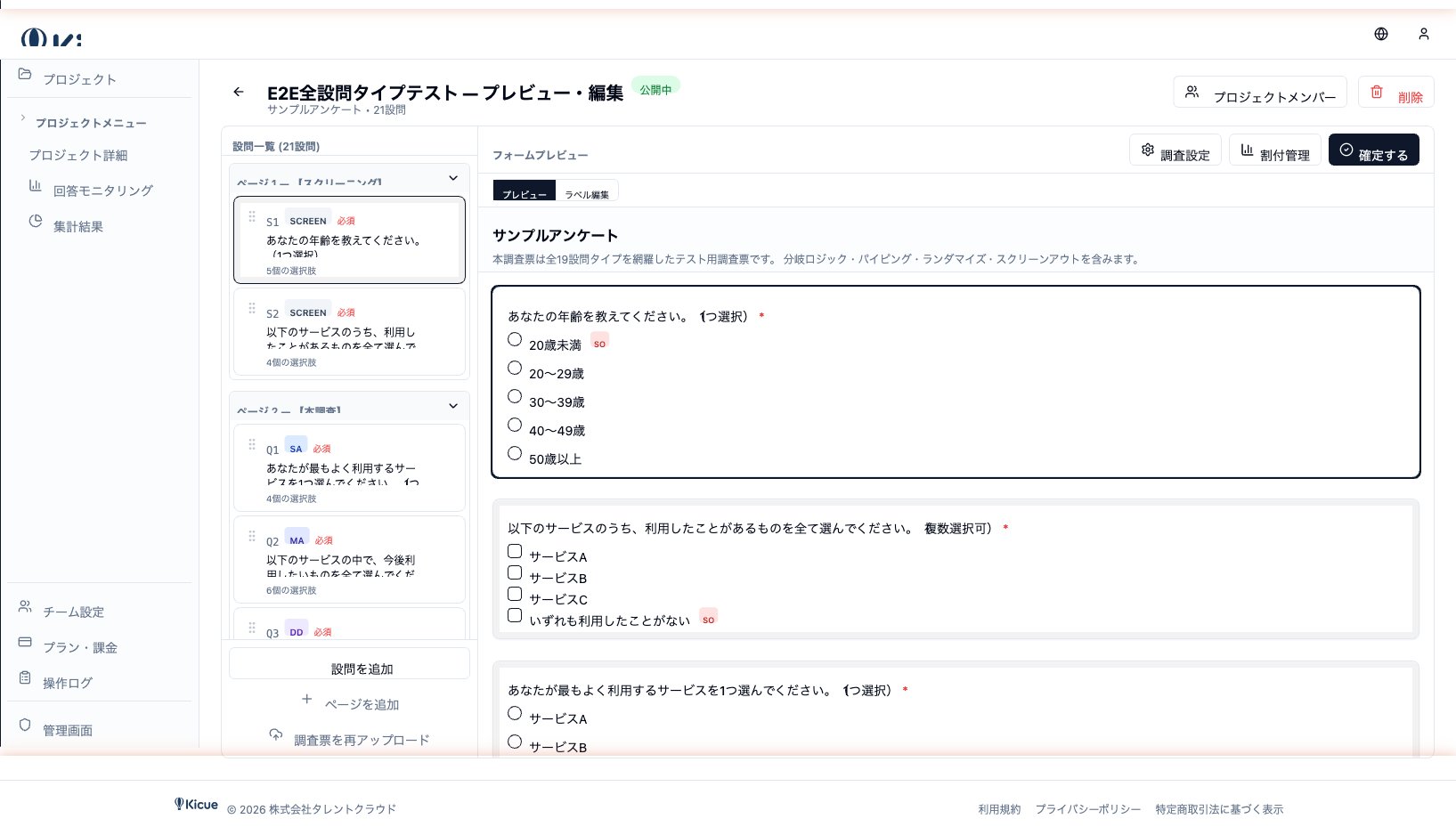
Once parsing is done you are taken to the preview screen. Confirm that:
- Question text is recognized correctly
- Question type matches your intent
- Options are complete
- Branching conditions are accurate
- Required vs optional flags are right
All editing happens inline.
- Click a question or option to edit in place
- Use the type selector to switch SA ↔ MA ↔ Matrix, etc.
- Add or change branching rules
- Add, delete, or reorder questions
After parsing
When you are happy with the results, click Publish to take the survey live. If you need to keep refining, stay on the preview screen until everything is ready.
Next, jump to Question Types to learn the specifics of each question format.