Quota Monitoring
Track real-time quota fill rates from the monitoring screen and understand what happens when a cell reaches its target.
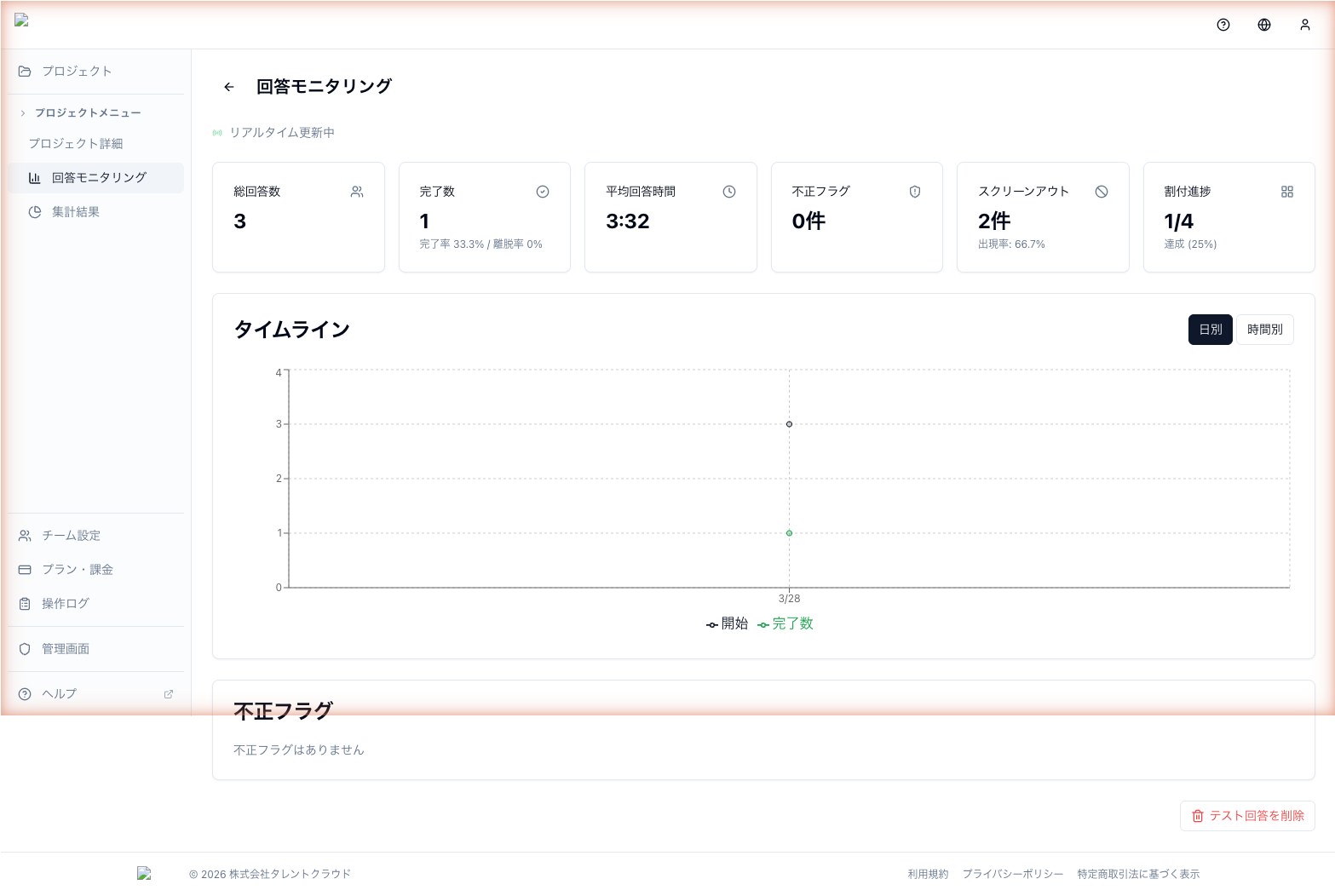
After publishing, you can watch quota progress in real time from the quota card on the monitoring screen. Cells that reach their target are handled automatically — respondents never see an "ineligible" message.
The quota card
At the top of the monitoring screen, the quota card shows:
- Fill rate: e.g.
3 / 12 cells (25%) - Progress bar: a visual representation of overall cell completion
- Last updated: a timestamp showing how fresh the data is
Clicking the card opens the quota modal with per-cell details, including current count, target, buffer, and fill rate.
What happens when a cell fills up
When a cell reaches its target plus buffer, any further respondents who would match it are automatically screened out.
- They are recorded with status
quota_full - The respondent sees a normal completion screen — no "you are ineligible" message
- This prevents negative user experience; respondents never realize they were excluded
Email notifications
When a cell reaches its target, an email notification is sent to project administrators with:
- Which cell was completed
- The overall fill rate
- A quick link to the project
Tabulation handling
Responses with status quota_full are automatically excluded from GT tabulation, cross tabulation, and raw data exports by default.