
How to Upload
Step-by-step instructions for uploading a survey document to kicue, plus notes on automatic parsing and automatic file deletion.
This page walks through uploading a survey document to kicue.
Upload flow
- After signing in, open the target project from the dashboard
- Drag and drop your survey file onto the Upload survey area, or click inside the area to select a file
- kicue uploads the file and automatically begins AI parsing
- Parsing completes within seconds and you are taken to the preview screen
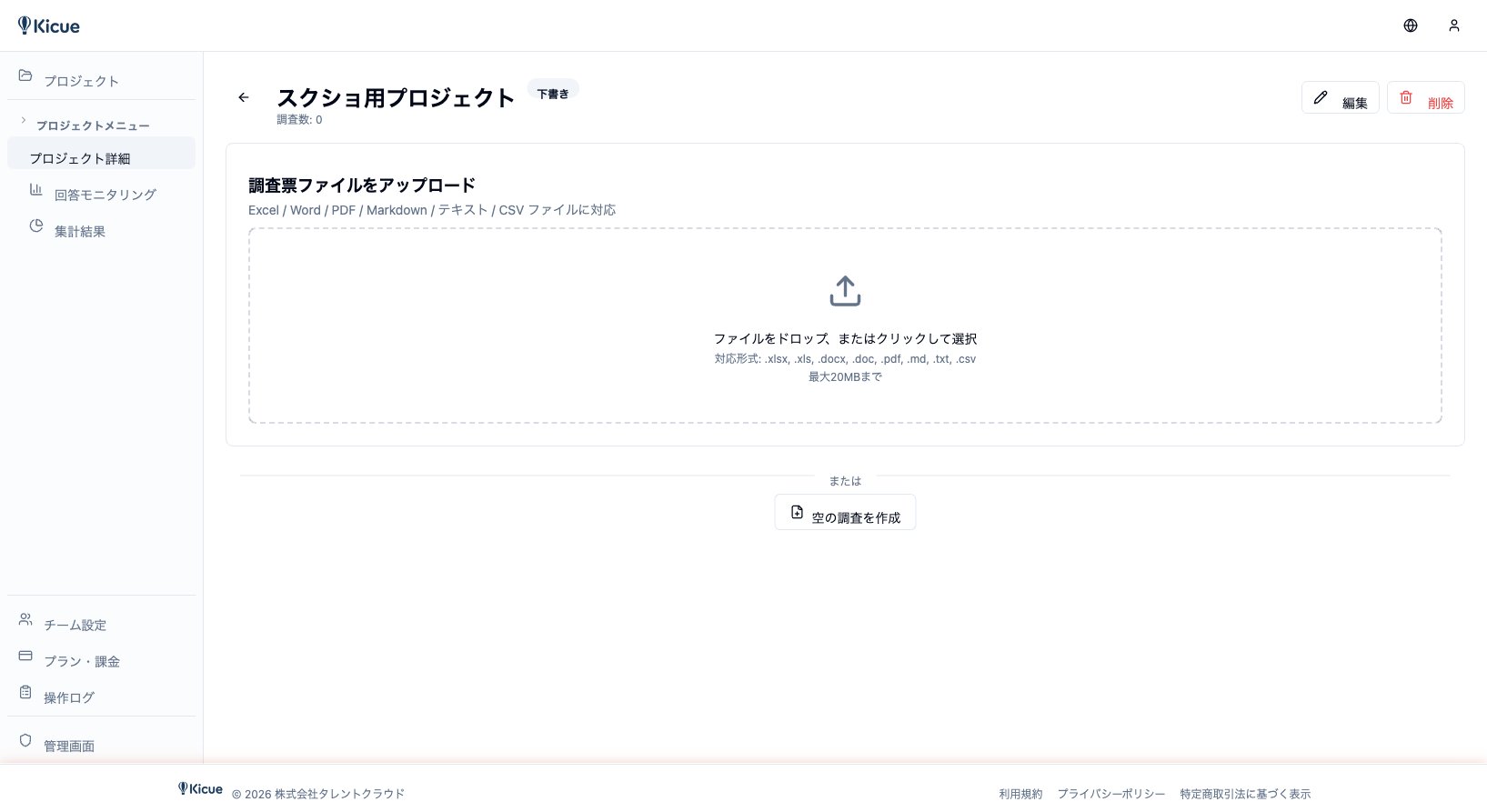
Drag-and-drop rules
- File count: 1 per upload
- Supported formats: Excel / Word / PDF / Markdown / Text
- Maximum size: 10 MB recommended
What happens to your file after upload
Uploaded survey files are automatically deleted from kicue's storage as soon as parsing completes.
- The original file cannot be re-downloaded from the preview screen
- Only parsing results (questions, options, logic) are persisted
- This is by design, to protect privacy and information security
It is safe to upload confidential survey documents.
Re-parsing
To reparse with a different file, upload a new file to the same project. Existing questions are replaced. You cannot re-upload the original file because it has already been deleted.
Troubleshooting
The upload does not start
- Check that the file is not unreasonably large (10 MB or less is recommended)
- Confirm the format is supported (.xlsx / .docx / .pdf / .md / .txt)
- Reload the browser and try again
Parsing fails or produces incorrect results
- Image-only PDFs may have poor accuracy. Convert to Excel or Word and try again
- Make sure question numbers and option boundaries are unambiguous
- See Supported File Formats and How AI Parsing Works for more guidance
Next step
Learn how to review and fix parsing output in How AI Parsing Works.