
Survey Settings
Configure your survey's basic information, target response count, duplicate prevention, back button, question labels, and other display controls.
The Survey Settings dialog gathers your survey's basic information, response controls (target count, duplicates, test mode), and display controls (back button, question labels, page titles) in a single screen.
Opening Survey Settings
In the editor, click the Survey Settings button in the top-right corner.
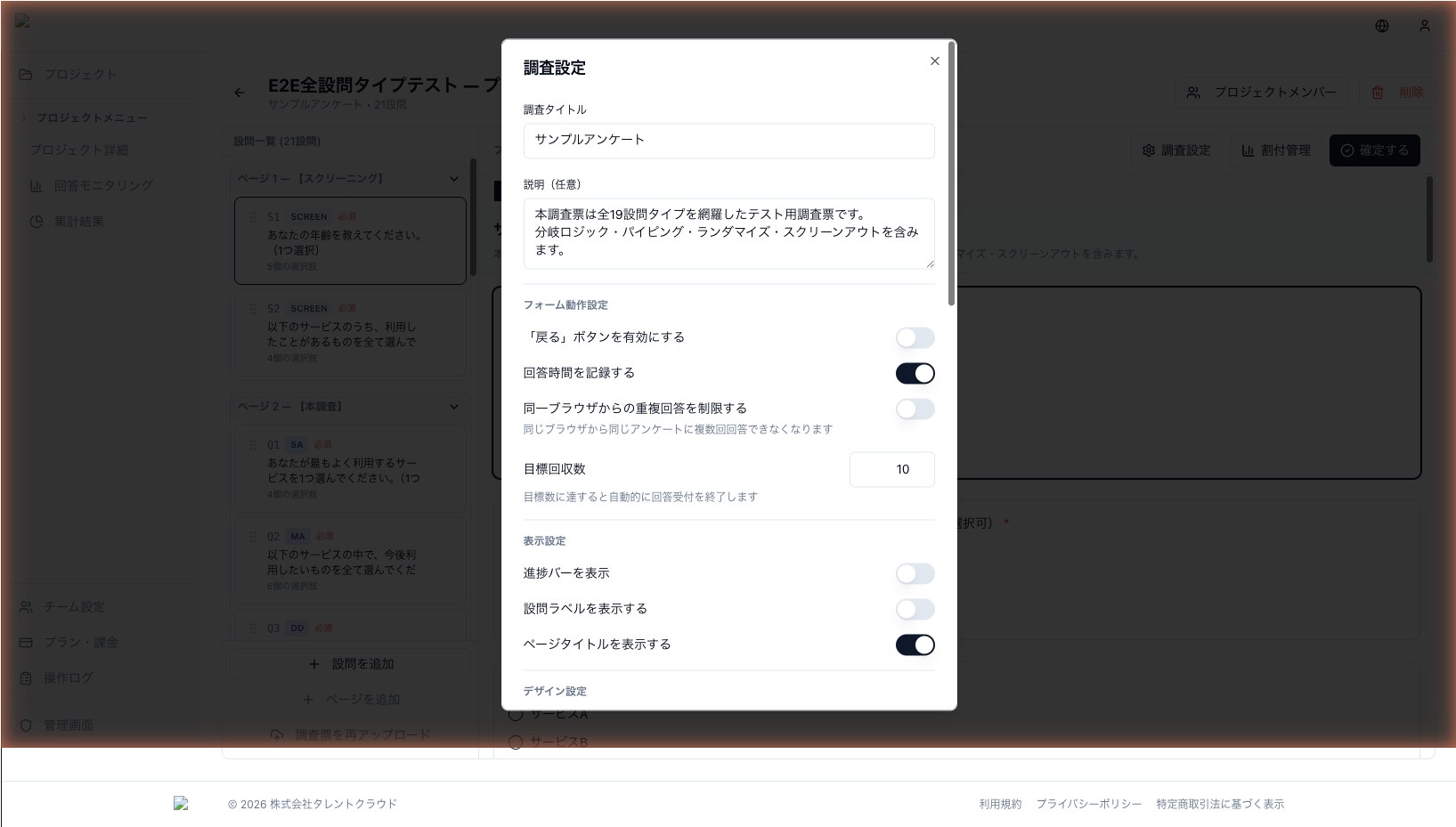
Basic Information
| Field | Description |
|---|---|
| Survey Title | The title of the survey, displayed at the top of the response screen. |
| Description | A short description shown before the survey starts — communicate the purpose and expected duration to respondents. |
Both fields are visible to respondents, so write them clearly and politely.
Response Controls
Target Response Count (target_responses)
Set the number of responses you want to collect.
- When the target is reached, the survey automatically closes to new responses
- The owner receives a notification email
- Set to 0 or leave blank for unlimited
This is perfect when going over a budget cap matters or when you need a fixed sample size.
Duplicate Response Prevention (prevent_duplicates)
Prevents the same browser from responding multiple times.
- Cookie-based detection of repeat visits
- Returning respondents see an "Already submitted" screen
- Not strict identification — clearing cookies or using a different browser still allows another response
Enable this for general-public surveys where one-person-one-response matters.
Test Response Mode
Useful for QA before going live or for internal walkthroughs.
- Responses submitted via the test URL (with
?mode=xxx) are excluded from analytics - Test responses are tagged in the raw data so you can distinguish them
- Great for full-pattern walkthroughs with teammates before launch
- Includes a bulk-delete tool so you can reset to a clean state on launch day
Display Controls
Fine-tune how respondents experience the survey.
Back Button
- Enabled: respondents can go back to a previous page and edit
- Disabled: the back action is unavailable
For academic studies that don't want respondents revising their answers based on later questions, disable the back button.
Question Label Display
- Enabled: question numbers (Q1, Q2, Q3, …) are shown
- Disabled: question numbers are hidden for a cleaner look
Consider disabling for short or casual surveys where numbering feels heavy.
Page Title Display
- Enabled: each page's title is shown
- Disabled: titles are hidden so only the questions appear
Disable for short surveys where you want minimal chrome.
Seeing changes on the form
Every setting change is reflected immediately in the preview. Switch to Preview Mode after any tweak to make sure everything looks right from the respondent's perspective.
Next step
Once the survey is configured, customize the look in Design Customization to match your brand.