
Publish URL
How to publish a kicue survey and share the public URL, including test mode, URL parameters, and how to pause or resume distribution.
Once the preview looks good, publish the survey and share the link with respondents. This page covers the publishing workflow and day-to-day operations.
Publishing flow
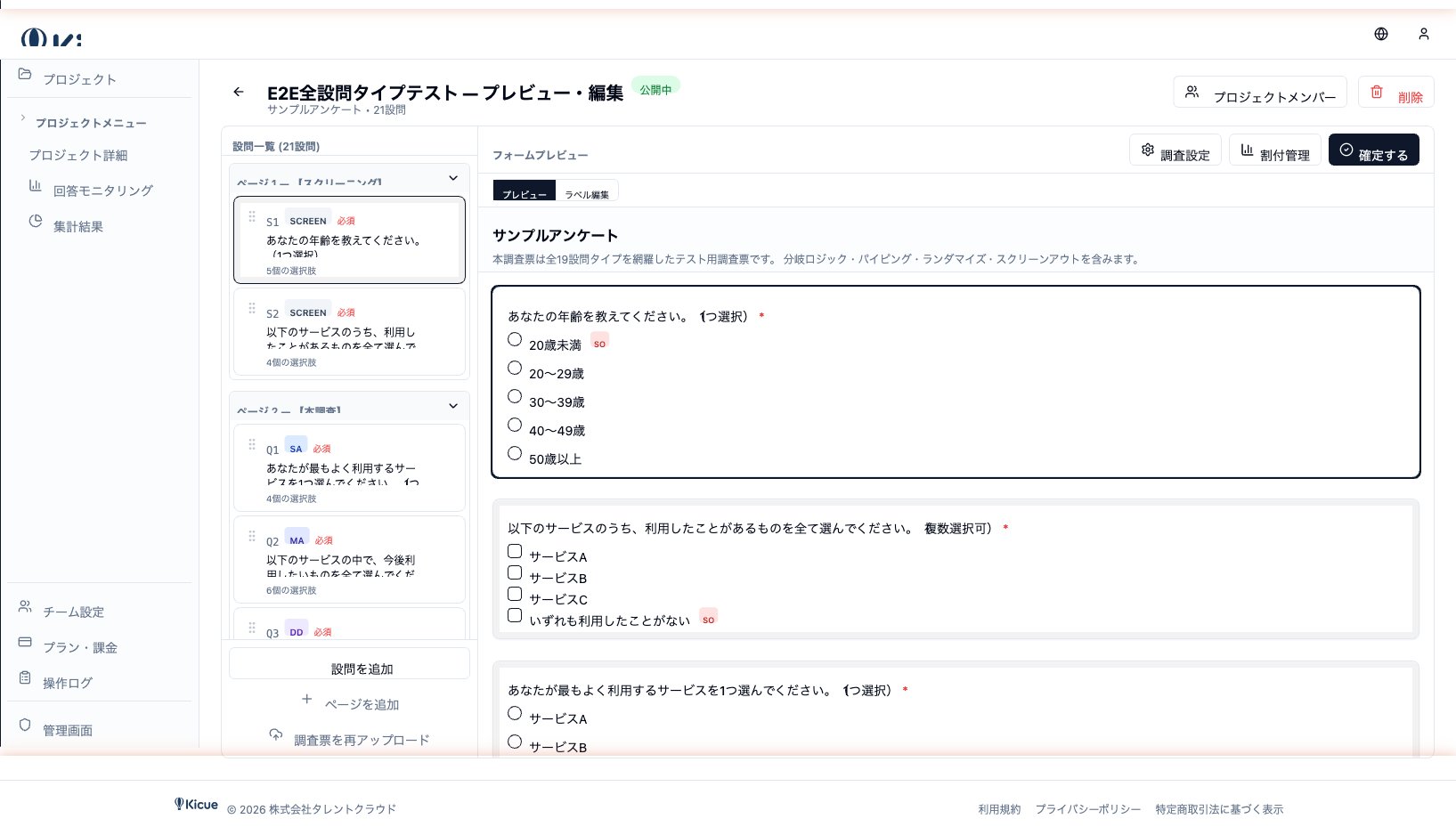
- Do a final review of questions, options, and logic on the preview screen
- Click Publish in the top-right corner
- kicue issues a public URL automatically
- Use the Copy button to copy the URL and share it with respondents
URL format
Published URLs look like this:
https://svys.net/s/{publicId}
Respondents can open the URL and start the survey directly — no account required.
Test mode
To dry-run the survey before going live, use the test mode URL.
- Test-mode responses are not counted in analytics, so they do not pollute real data
- Append
?test=1to the URL to enter test mode - Grab the test URL from the Copy test URL button on the preview screen
Use it for final walk-throughs and QA with teammates.
URL parameters
You can append arbitrary query parameters to the public URL to tie responses to their traffic source, campaign, or user ID.
Example
https://svys.net/s/abc123?utm_source=mail&campaign=spring&uid=U001
utm_source=mail— mark responses that came from the email blastcampaign=spring— classify as part of the spring campaignuid=U001— join with your internal customer ID for downstream analysis
Captured values are stored alongside each response and become available as axes in GT and cross tabulation, as well as in raw data exports.
Carried over to the completion screen
Configured query parameters are automatically carried over to the completion screen URL, which makes it easy to wire up external measurement tools such as GA4.
Pausing and resuming
To stop taking responses (end of fielding, temporary pause, etc.), click Stop on the project screen.
- While paused, the URL shows a "Survey ended" page
- Resume to accept responses on the same URL again
- Existing responses are preserved in both states
Things to keep in mind
- The public URL is accessible to anyone who has it. Distribute privately if you need to keep the survey internal.
- When passing PII (email, personal names) via URL parameters, be mindful of privacy expectations.
Next step
After publishing, head to Response Monitoring to track progress live.